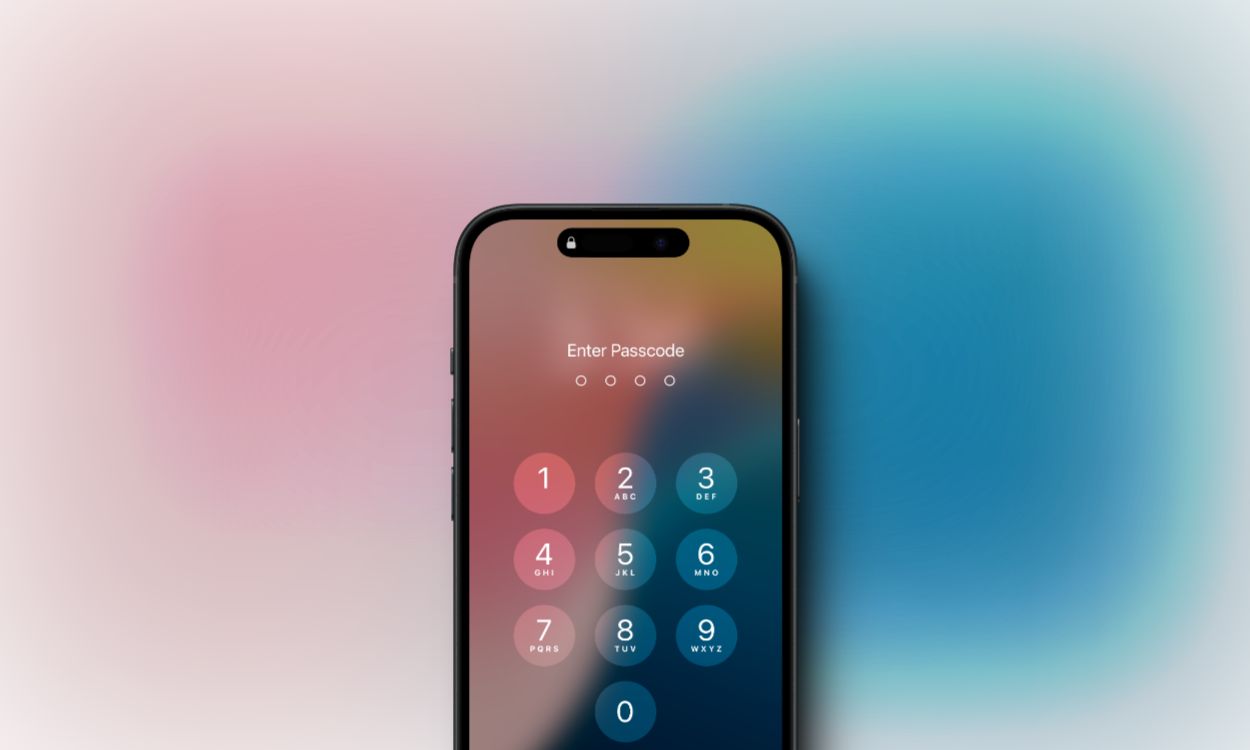
It happens to the best of us. You change your passcode on a whim because you’re worried about privacy, or maybe a kid got hold of the device and tapped in enough wrong guesses to trigger that dreaded "iPhone is disabled" message. Suddenly, your $1,000 piece of high-tech glass and titanium is basically a very expensive paperweight. Honestly, it’s a gut-punch feeling. You realize just how much of your life is tucked away behind that four or six-digit code. But here is the thing: Apple designed this security to be tough. Like, really tough. If it were easy to bypass, your data wouldn't be safe. Fortunately, there are several legitimate ways to unlock iPhone screen lock situations, though most of them come with a significant trade-off—usually your data, unless you’ve been diligent about backups.
Apple’s security architecture relies on a hardware-level component called the Secure Enclave. This isn't just software. It’s a dedicated chip that handles your biometric data and passcode encryption. When you enter a passcode, the Secure Enclave verifies it. If you fail too many times, the system starts a cooldown period. After ten failed attempts? You’re locked out completely. This isn't a bug; it's the system working exactly as intended to prevent "brute force" attacks where a thief tries every possible combination.
The Reality of the Erase iPhone Option
If you're running iOS 15.2 or later, you might see a "Forgot Passcode?" or "Erase iPhone" option at the bottom of the lockout screen. This is the most straightforward way to deal with the problem. But there's a catch. You need to be connected to a cellular or Wi-Fi network. If you didn't have "Find My" enabled before the lockout, this button might not even show up.
Tap it. You'll be warned that all your content and settings will be wiped. You'll have to enter your Apple ID password to sign out of your account. Once you do that, the phone wipes itself clean. It’s a fresh start. If you have an iCloud backup from last night, you're golden. If not, well, you’ve just learned a very painful lesson about data redundancy. It’s better than having a bricked phone, though.
Using a Mac or PC to Force a Reset
Sometimes the on-screen options don't appear. Maybe the Wi-Fi is off. In these cases, you have to get physical. You need a computer. If you're on a Mac with macOS Catalina or later, you’ll use Finder. If you’re on an older Mac or a Windows PC, you’re still using iTunes.
✨ Don't miss: Uncle Bob Clean Architecture: Why Your Project Is Probably a Mess (And How to Fix It)
First, turn off the iPhone. Then, you have to put it into Recovery Mode. This requires a specific button-pressing dance that varies by model. For the iPhone 8 and later—including the newest iPhone 15 and 16 models—you click and release Volume Up, then Volume Down, then hold the Side button while plugging it into the computer. Keep holding that button until you see the support screen (a cable pointing toward a computer icon).
Once Finder or iTunes recognizes the device, it will ask if you want to Restore or Update. You want Restore. This downloads the latest version of iOS and slams it onto your device, obliterating the passcode in the process. This process can take a while. If the download takes longer than 15 minutes, your phone might exit recovery mode. Don't panic. Just let the download finish and then do the button dance again.
Why iCloud.com is Your Secret Weapon
What if you don't have a computer handy but you have a friend's phone? You can unlock iPhone screen lock remotely. Go to iCloud.com/find. Log in with your Apple ID and password. This is where people usually get stuck because of Two-Factor Authentication (2FA). If your iPhone is your only trusted device, you can't get the code.
However, Apple allows you to skip the 2FA code specifically for the "Find Devices" feature. Once you're in, select your locked iPhone from the list and hit "Erase iPhone." As long as the locked phone is turned on and has an internet connection, it will receive the "kill signal" and wipe itself. This is actually a security feature meant for stolen phones, but it works perfectly for the forgetful owner too.
🔗 Read more: Lake House Computer Password: Why Your Vacation Rental Security is Probably Broken
The Myth of the Secret Bypass
Let’s talk about the "gray market" of iPhone unlocking. You’ve probably seen YouTube videos or sketchy websites claiming there’s a secret dialer code or a "backdoor" to get past the lock screen without losing data.
They are lying.
Unless you are a high-level government agency with access to tools like Cellebrite or GrayKey—which cost tens of thousands of dollars and exploit specific, unpatched hardware vulnerabilities—there is no magic software that "cracks" a modern iPhone passcode while keeping your photos intact. Any website asking you to pay $50 for a "guaranteed no-data-loss unlock" is likely a scam or is simply selling you a front-end for the same Recovery Mode process I just described.
Apple Support and the Proof of Ownership
If you’re stuck because you also forgot your Apple ID password, the situation gets hairier. This is called Activation Lock. Even after you wipe the phone, it will ask for the original Apple ID. If you can't provide it, the phone is effectively useless.
💡 You might also like: How to Access Hotspot on iPhone: What Most People Get Wrong
Apple can remove this, but they won't do it just because you asked nicely. You need the original proof of purchase. We're talking about a receipt that shows the serial number or IMEI. If you bought it second-hand from eBay and the previous owner didn't sign out, you're likely out of luck. Apple is notoriously strict about this to discourage phone theft. No receipt, no unlock.
Managing the Aftermath
Once the phone is wiped, the setup screen appears. This is where the "unlock" actually completes. You'll sign back in with your Apple ID. If you have an iCloud backup, the phone will ask if you want to restore it.
- Choose the most recent backup. Even if it’s a few days old, it’s better than starting from zero.
- Re-downloading Apps. Your apps will start downloading automatically, but you'll likely have to log back into every single one of them.
- Apple Wallet. For security, your credit cards won't be restored. You’ll have to add them back manually to Apple Pay.
The real takeaway here is that the passcode is the key to your encryption. Without it, the data is technically scrambled. When you "unlock" a locked iPhone through these methods, you aren't actually finding the key; you're throwing away the locked box and getting a new one.
Concrete Steps to Prevent This From Happening Again
The best way to handle a lockout is to make sure the "recovery" part is painless. It sounds like a chore, but doing these three things right now will save you hours of frustration later.
- Check your iCloud Backup status. Go to Settings > [Your Name] > iCloud > iCloud Backup. Make sure it's "On." If it hasn't backed up in a week, hit "Back Up Now."
- Set up a Legacy Contact. This won't help you unlock your own phone while you're alive, but it helps your family if something happens to you. It's under Password & Security.
- Write the passcode down. Seriously. Put it in a physical safe or a password manager like 1Password or Bitwarden.
- Use an Alpha-Numeric Passcode. If you’re worried about security, don't just use a 4-digit PIN. Go to Settings > Face ID & Passcode > Change Passcode > Passcode Options. Choose "Custom Alphanumeric Code." It's much harder to crack but often easier to remember if it's a phrase.
If you are currently staring at a "Disabled" screen, grab your charging cable, find a computer, and start the Recovery Mode process. It’s the only reliable way back into your device. Don't waste time on "bypass" tools that promise the impossible. Stick to the official Apple-supported pathways to ensure your device remains stable and secure.